Cultivate
I need to weed all titles from the romance collection that have been loaned more than 30 times.
First we need to select the relevant options from the ‘Library & Collection’ filter panel. We’ll select ‘Jasmine Library’ and ‘Romance Fiction’. The number of items is displayed at the bottom of the panel, split into available and loaned items.
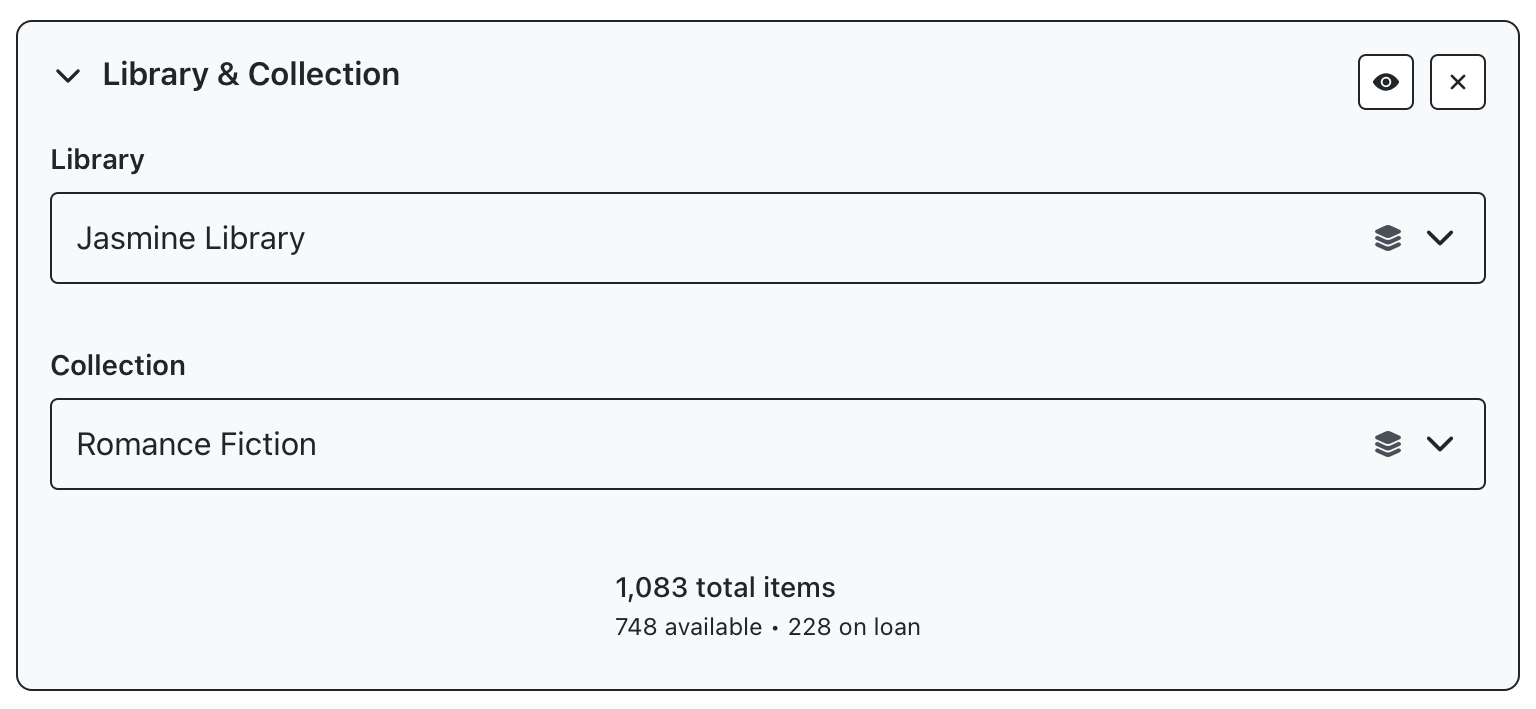
We're not filtering for author or title here so we can leave the Author & Panel blank or hit the x in the top right to make sure it’s being bypassed.

In the ‘filter settings’ panel, first select ‘weeding’ to reveal the relevant options, then ‘Grubby’ in the filter type dropdown. A slider will load for the preview range, with bars along it’s axis representing the quantity of items at that level. So in this example, no items in the collection have been borrowed more than 53 times, with a high of 54 entries having been borrowed 9 times. Checkouts taper off around the 20-35 range.
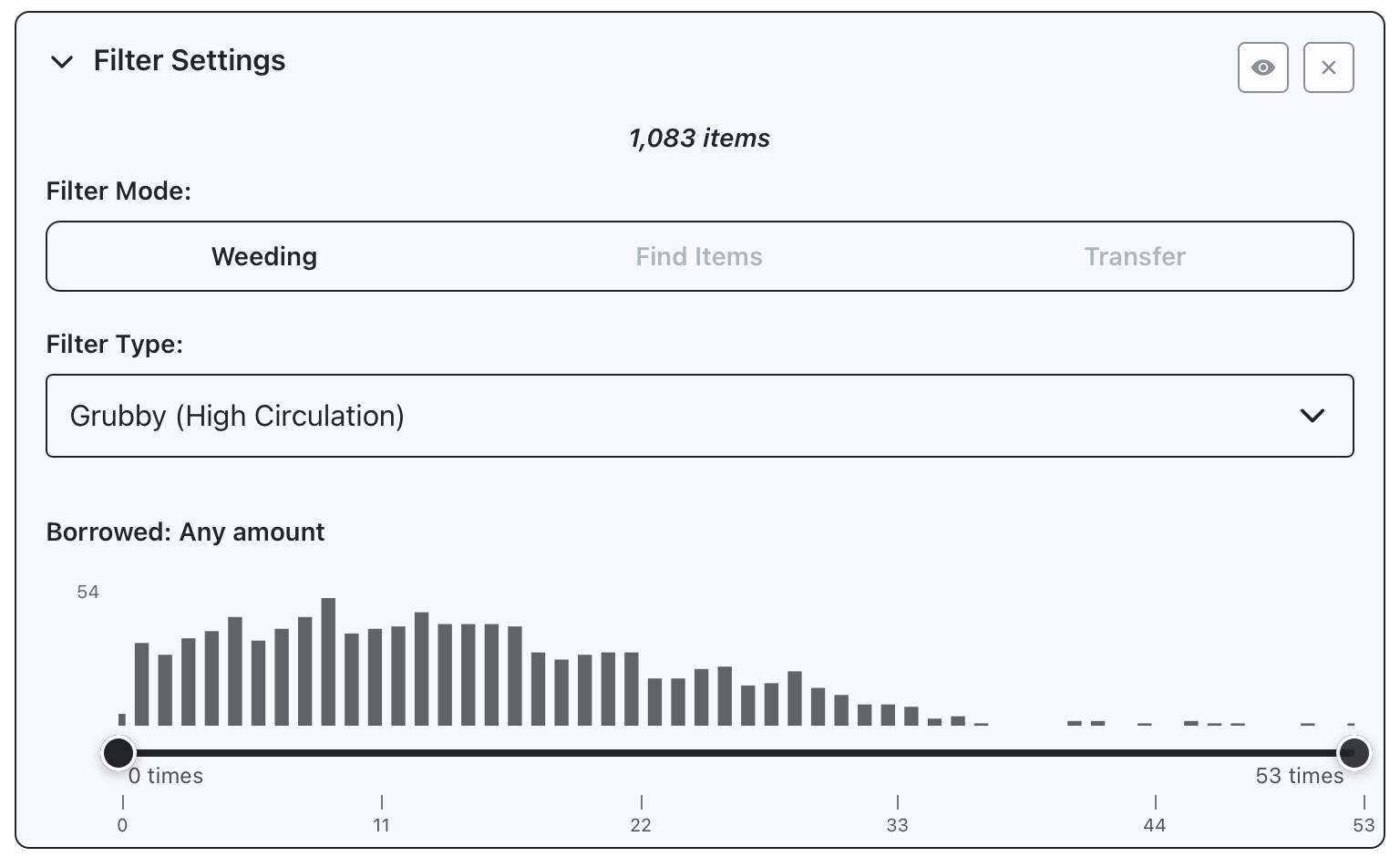
Move the metric slider to select all items with more than 30 loans, a tooltip will display as you are moving the slider, showing the current slider position, and number of items at this point. We’ll move the first slider handle to the 30 position, the item count at the top of the panel will update to show the new item count.
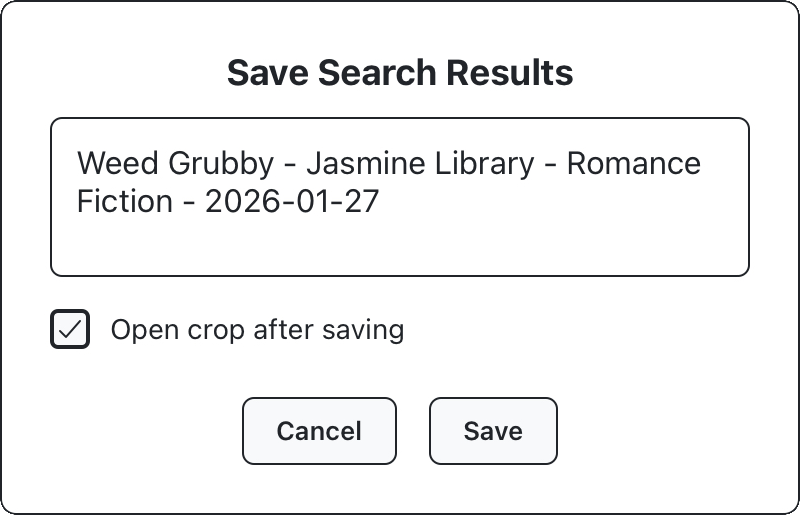
Open the results panel to run the query and return specific entries, along with some basic information like checkouts and last activity. Switches above the results list can be used to exclude certain statuses, such as those which are on loan. In this example, 74 items are returned by the search, we’ll exclude “assumed lost” and “in transit” entries to limit this to 66. Pressing the “save” button will open a confirmation prompt, where you can rename your crop before saving. Uncheck “open crop after saving” and hit save.
You’ve now created a Weeding crop based on checkouts data. Similar slider controls are available in the filter type dropdown to generate crops based on activity or age data. For this example, we’ve unchecked “open crop after saving”, as this guide will continue to cover some other types of cultivation. If you’d prefer to get started harvesting your crop immediately, you can leave this box checked and your crop will open immediately in the harvest screen.
If you’d like, you can also save these cultivation settings, so they can be quickly reloaded in the future. Use the bookmark icon in the filter settings panel and enter a name for the cultivation. Cultivations are saved to the current garden, and will be available to other users after syncing.