Garden
How can I export my crops, for use in other applications or embedded in my website?
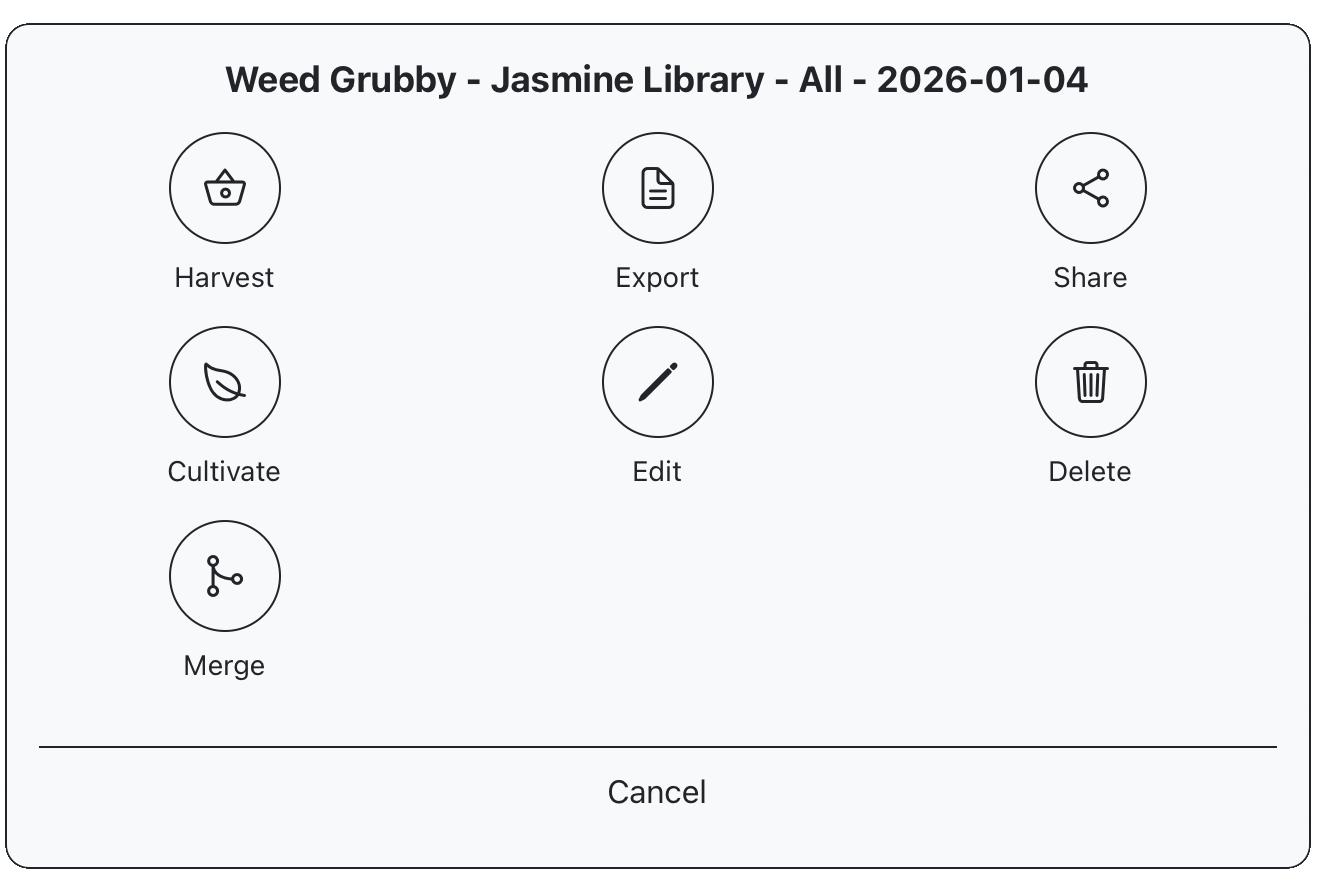
Select your crop from the garden screen to see available actions, select “export”. This will open an edit screen with several export options.
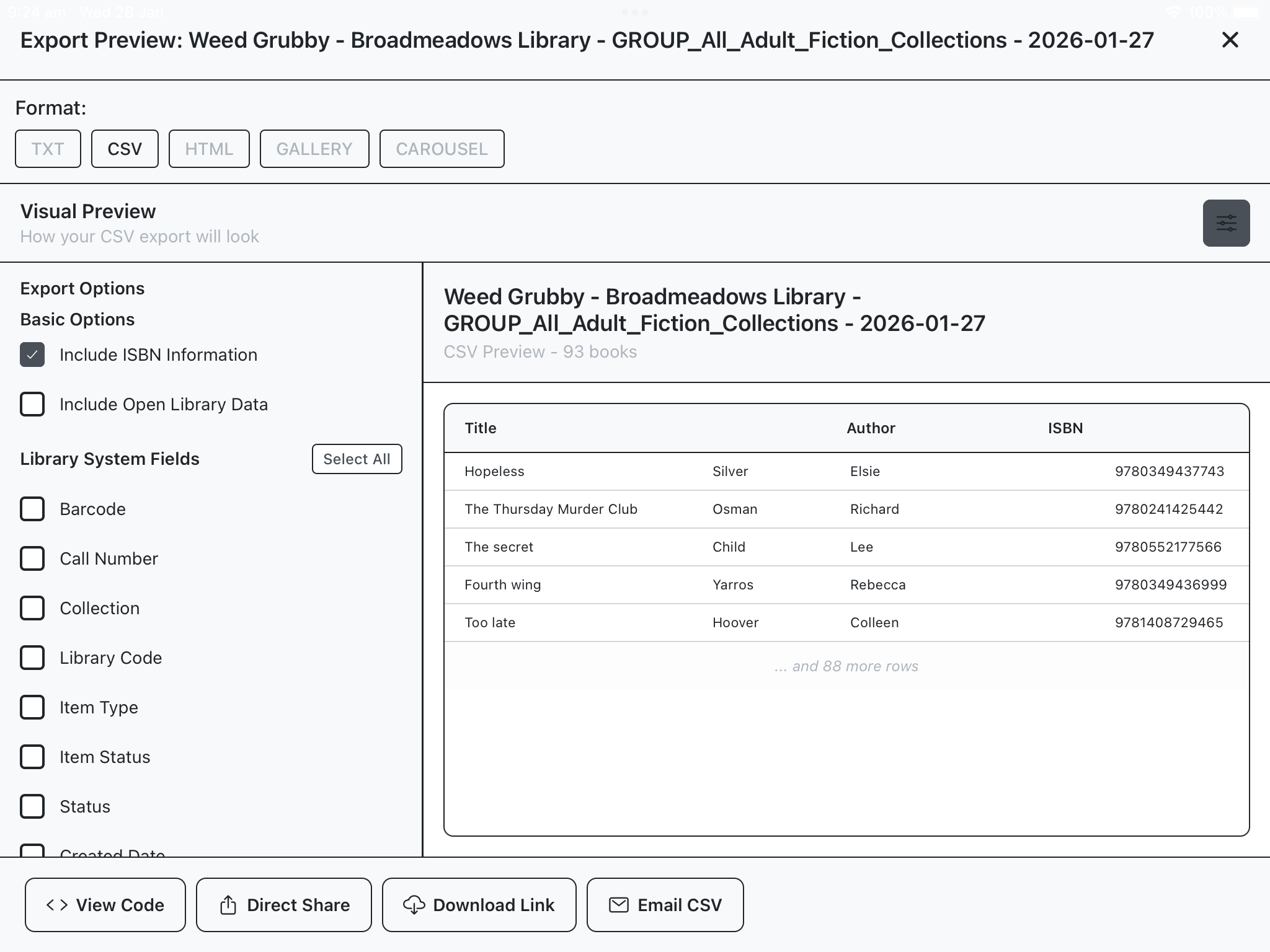
Text/CSV – these formats export text data for the crop, with some options for including metadata.
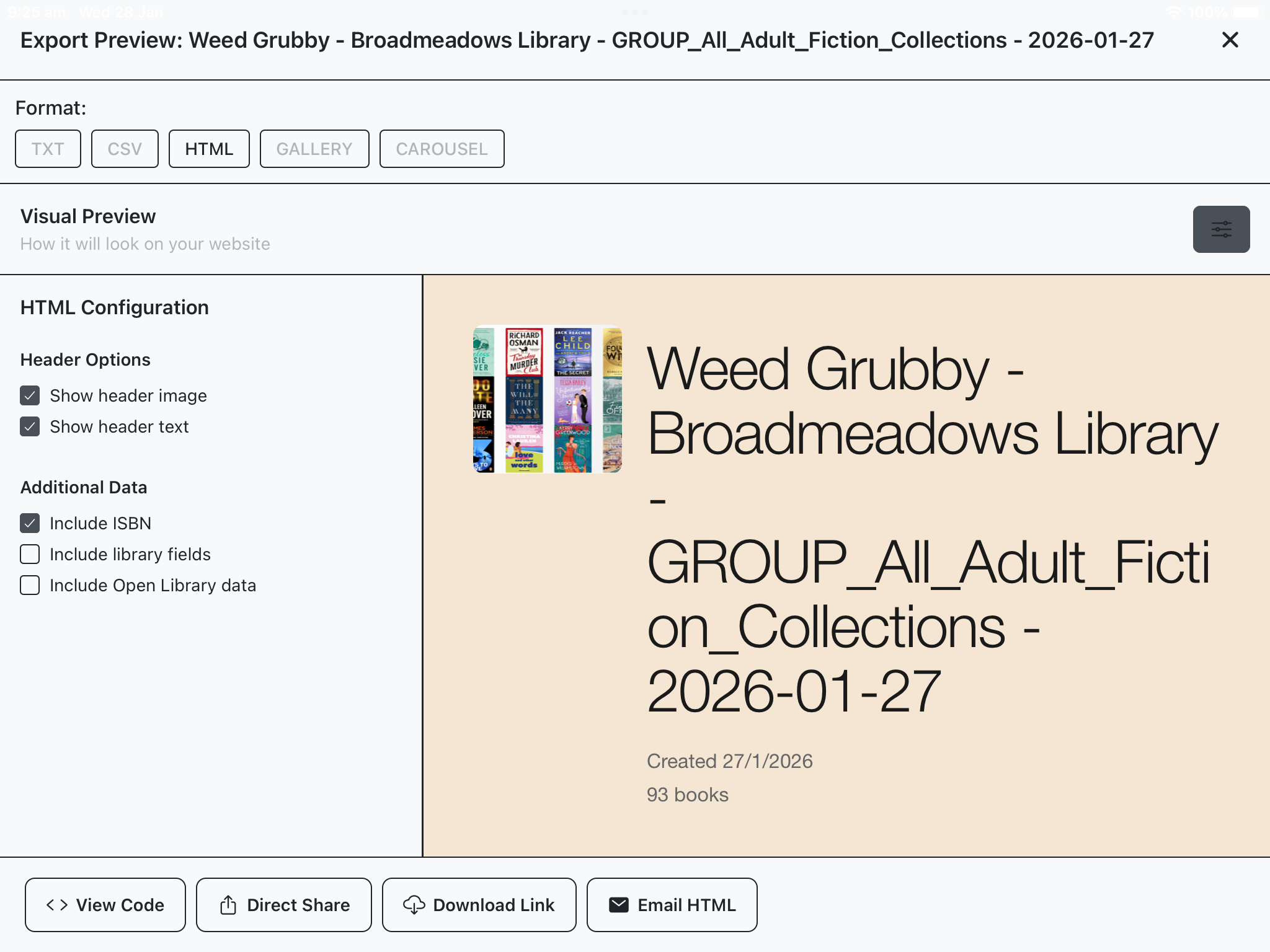
Html – this exports an html document presenting books in the crop as a scrollable list, with “borrow now” buttons.
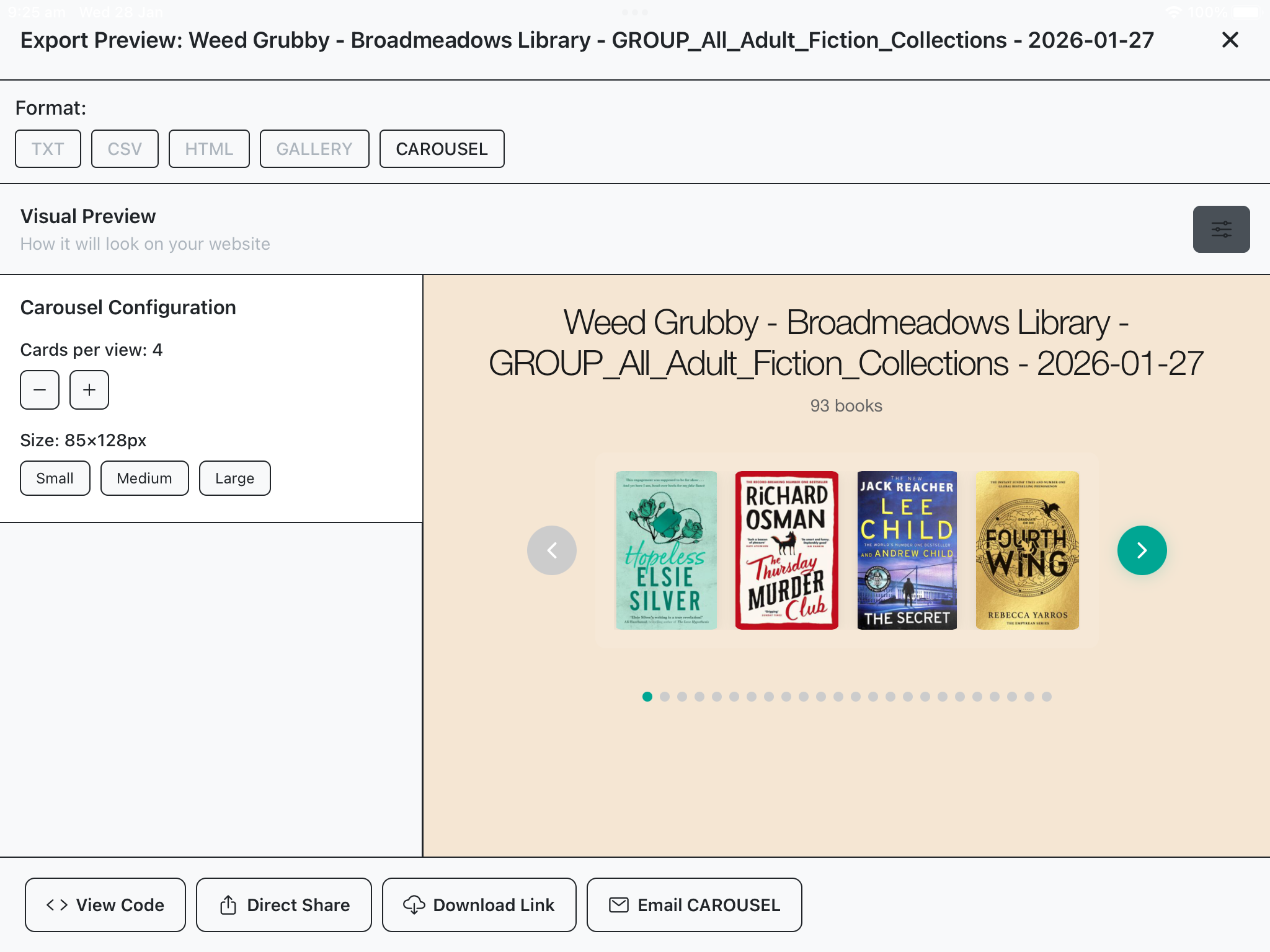
Gallery/Carousel – this exports html embed code for a gallery or carousel display view. This is distinct from the html export in that it does not export a complete html document. Rather it exports text information for embedding in your website.
Export – If on mobile a “direct share” option is available using OS options, otherwise data can be exported via email. In some cases your organization may block emails from collectionparadise.com.au with attachments. In this case “Download Link” can be used, to email the user a download link for the export.
