Getting Started
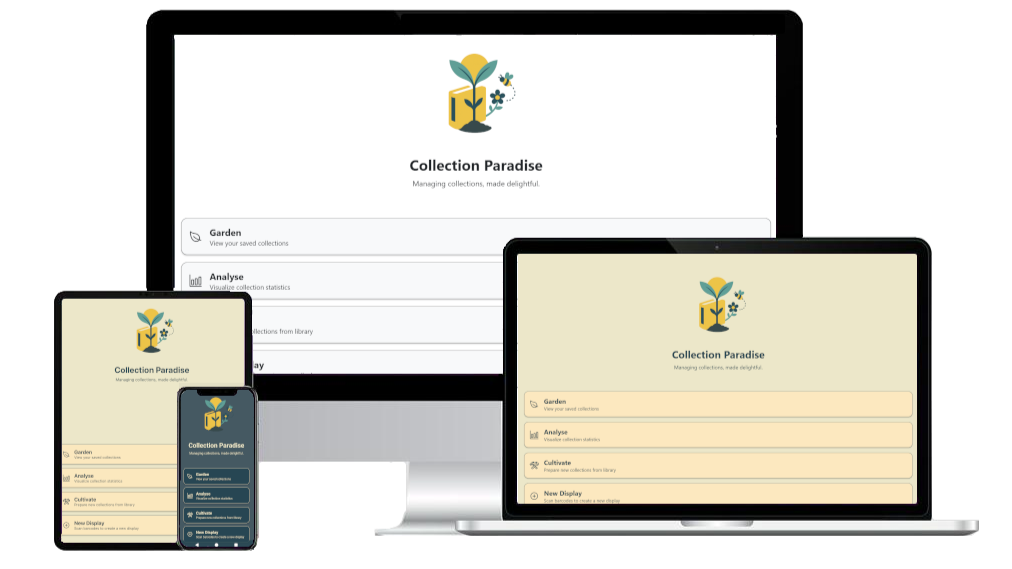
Collection Paradise
This guide walks through every screen and feature of Collection Paradise, if your library has been set up with your data, you will receive instructions to access your data.
You can also follow this guide for the demo dataset, find instructions to access Collection Paradise using the demo dataset at the ‘Try a Demo’ at the top right of this page.
To navigate through this guide, find the menu bar on the left side of this page, with separate sections for each of the five screens that are available in Collection Paradise. Move to the next section sequentially with the ‘complete & continue’ button at the top and bottom right of each page.
If you have questions at any point, please get in touch via the contact page.
What does it do?
Collection Paradise is a suite of tools to use for analysing, managing and promoting your collection of library items. It is designed to be used by all staff to perform tasks set by the library service.
You can use collection paradise to identify items based on specific criteria (such as total loans, last active, date created) to:
Target for weeding
Transfer between branches
Create physical and digital displays
These lists (which are known within Collection Paradies as ‘crops’) are displayed within the software, so staff can work with them directly from a tablet in the stacks, but they can also be exported for further use.
Collection Paradise also includes features designed to give you detailed analysis of collection statistics and performance tracking against metrics as designed by the user.
How does it work?
Collection Paradise requires regular data exports from your LMS, your technical staff will work with us to set this up. CP then interacts via the cloud with this exported data. The data within CP will be up to date with the LMS according to the schedule for these exports (usually daily)
Key Terms
In keeping with the gardening theme, there are a few terms we need to define before we get started:
Crop: A list of collection items. You build crops on the 'Cultivate' screen by selecting your branch and collection type, then applying additional filters to generate your targeted item list. Manual crops can also be created on the Harvest screen, books can be added by scanning barcodes or searching the database.
Cultivate: The process of generating crops by filtering items based on your specific criteria.
Harvest: Working with your crops—either pulling items for weeding, transfer, or display purposes, or generating promotional graphics for your website and social media channels.
Garden: Where your crops are stored, these are further grouped by category ie - ‘weeding’, ‘transfer’, ‘to action’ and ‘complete’
Weeding: you should know this one! This simply refers to the removal of collection items when they have been well circulated through the collection or no longer generating loans.