Harvest
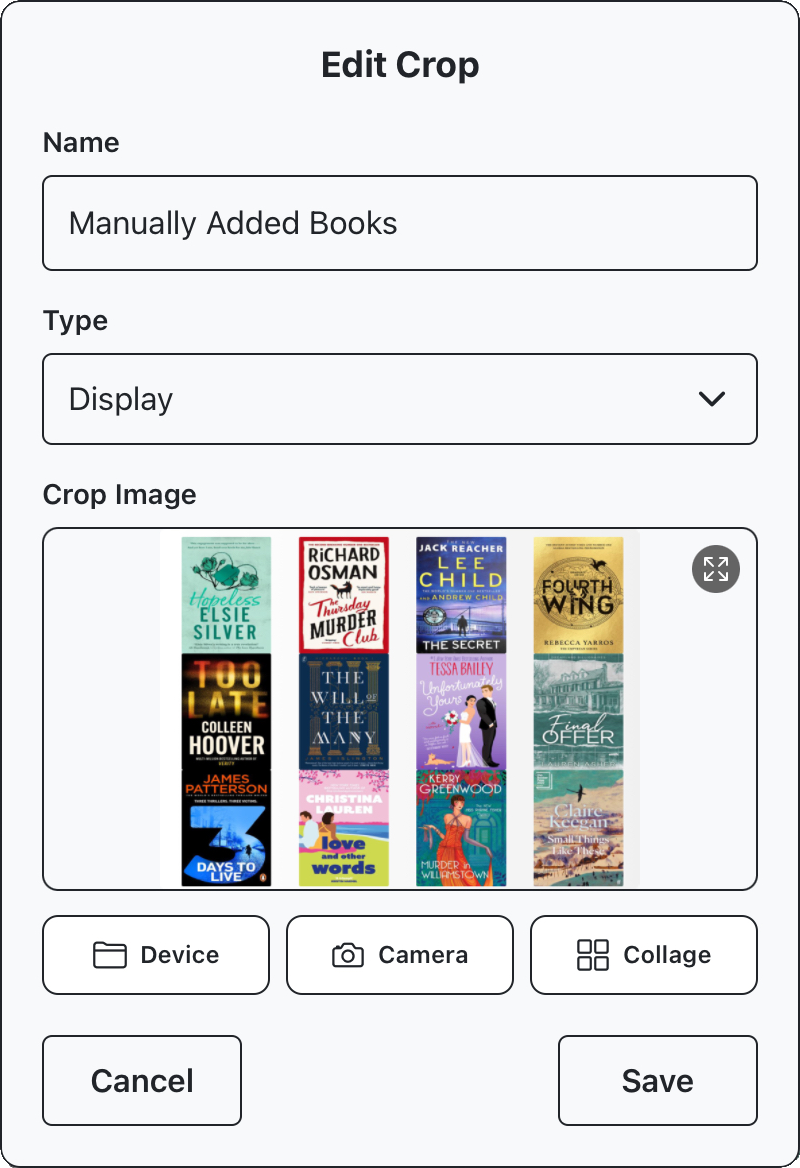
An image can be set for the crop using the edit panel, accessible form the pencil icon in the details panel. From here, you can set an image from storage or camera or generate a collage from books in the crop. For this example we’ll select “Collage” top open the collage generation screen.
How can I generate a cover image for my crop?
This screen arranges cover images for books in the crop over a background, with some rudimentary drawing controls. If you’d like, you can use the randomize button in the top right of the display to see some different layout options.
Several configuration panels can be pulled up from the bottom of the display and used to edit settings.
Background – set background gradient or image
Layout – choose layout and cover image size
Covers – choose specific covers and set borders
Drawing mode can be activated from the top of the screen
Draw shapes
Draw emojis
Free draw
When you’re done editing your image, the save button in the top right of the screen can be used to save the new crop image.